


I worked from a Google Pixel for a day: testing Android Desktop Mode


When my MacBook died during a routine update, Android Desktop Mode became my unexpected backup plan. Here's what worked, what didn't, and why it's a feature worth keeping an eye on.
What happened
My work laptop died at the worst possible time (is there ever a good time for your work laptop to die?) while applying a small security update I thought I could get out of the way before starting the day. Mistake.I work off a MacBook Pro (M1) and I was facing a black screen after repeatedly trying to reboot. Brightec colleagues and friends helped me eventually get it back up and running but in the meantime, I still wanted to stay productive.I’d heard about Android Desktop before so this felt like the perfect chance to see what it could do (and what I could do with it).
The setup
Here’s the hardware I used, and how I enabled Desktop Mode on the Pixel.
- Device: Google Pixel 9a running Android 16
- Connection: USB-C from phone to an external monitor
- Peripherals: wired keyboard + wired mouse (connected to the monitor)
- Mode: Android Desktop (Desktop Mode / desktop windowing)
Practical note: the Pixel also charged from the monitor, so it genuinely lasted all day (although it did start to feel a bit warm after a while).
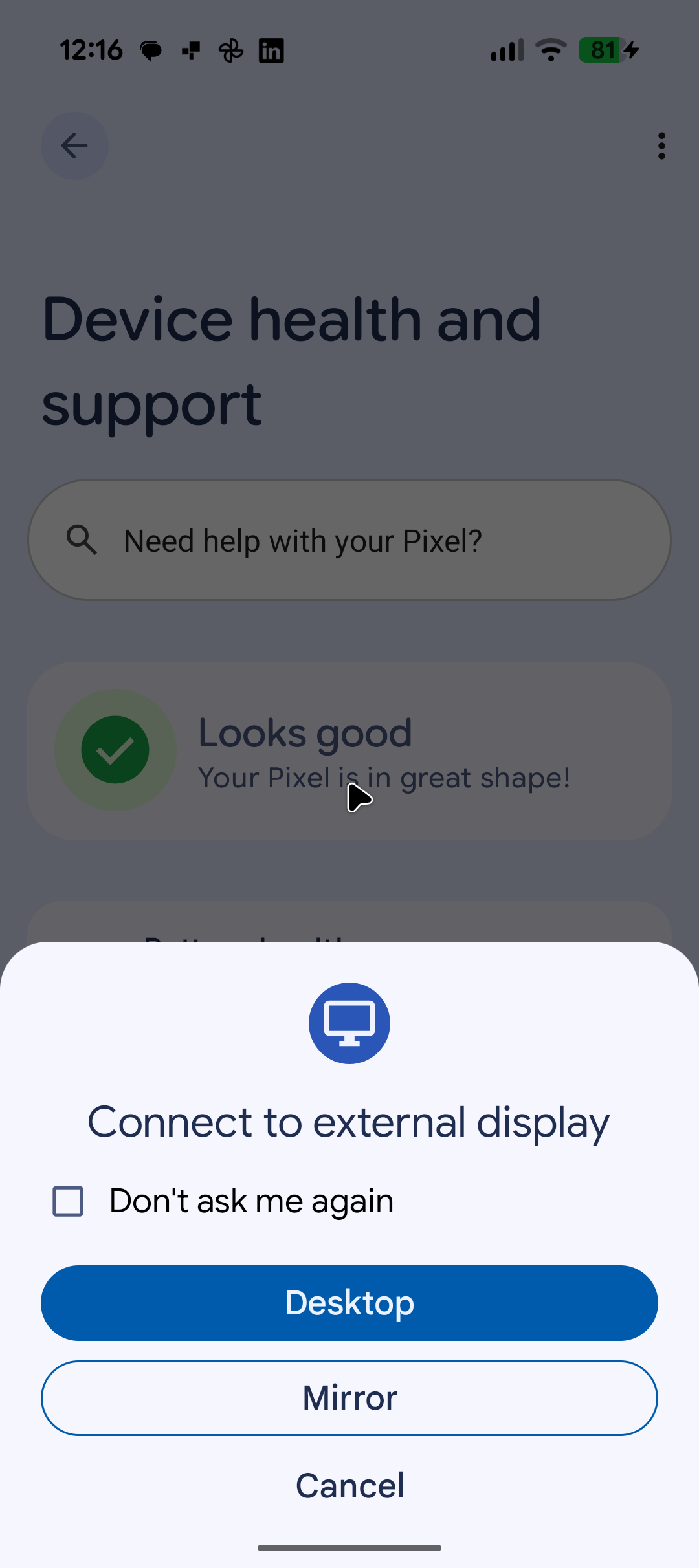
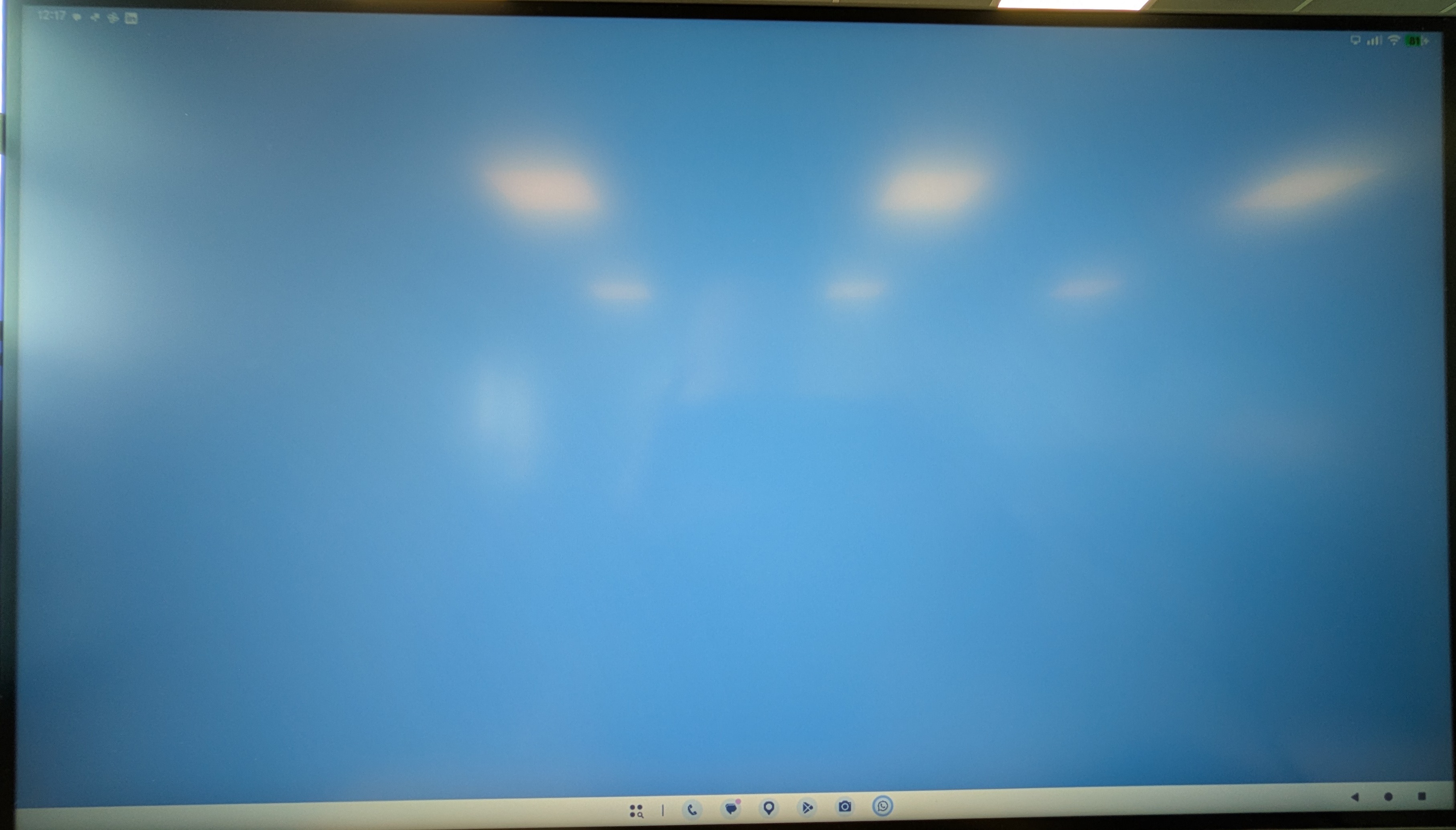
In this post, “Android Desktop” refers to the hidden Desktop Mode that ships with Android 16 (similar in spirit to Samsung’s DeX) and replaces the previous behaviour when you plug an Android phone into a USB-C external display.
To enable it (at least on my Pixel 9a), I had to:
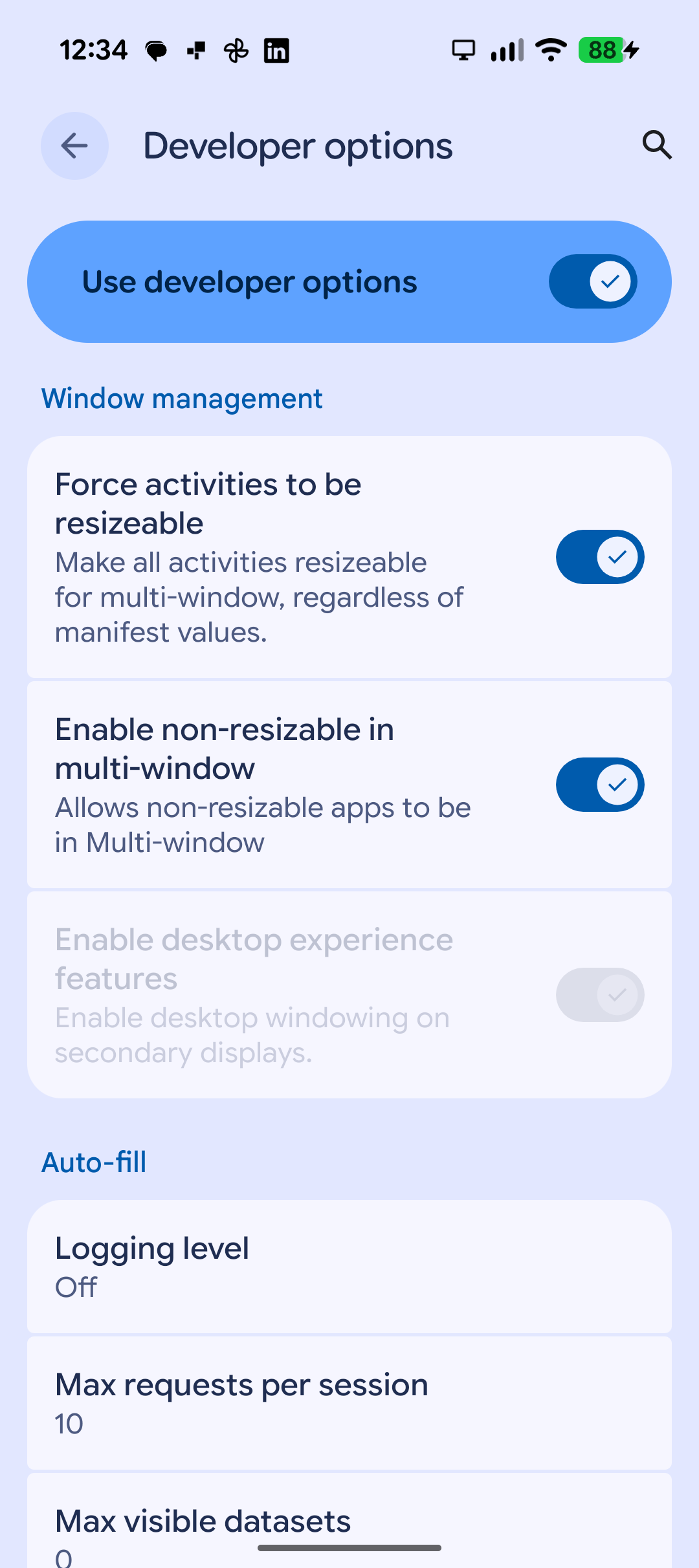
- enable Developer options (Settings → About phone → tap Build number 7 times)
- go to Settings → System → Developer options → Window management
- turn on the Enable desktop windowing on secondary displays setting
What I could do (surprisingly well)
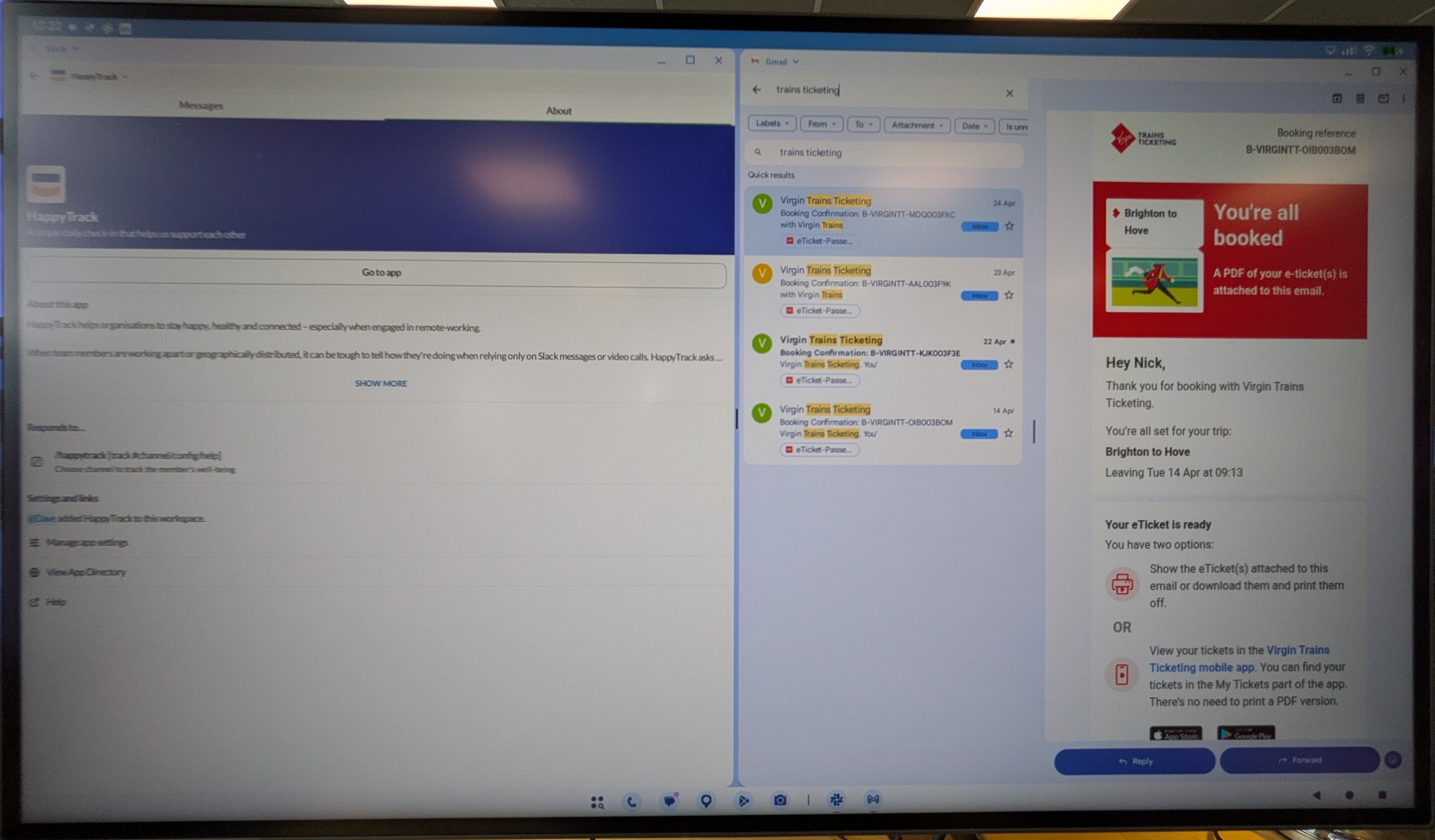
My day started with the company all-hands on Google Meet on my phone, but as the day went on I found myself spending more and more time in Desktop Mode — especially once I’d got a few apps arranged across multiple desktop views.In practice, I ended up using one desktop for comms (email + Slack split view) and another for “work work” (Jira + GitHub).
Company comms + collaboration
- Slack for day-to-day team comms
- Google Meet for video calls
- Jira for ticket triage and updates
“Real” engineering work (within limits)
- GitHub:
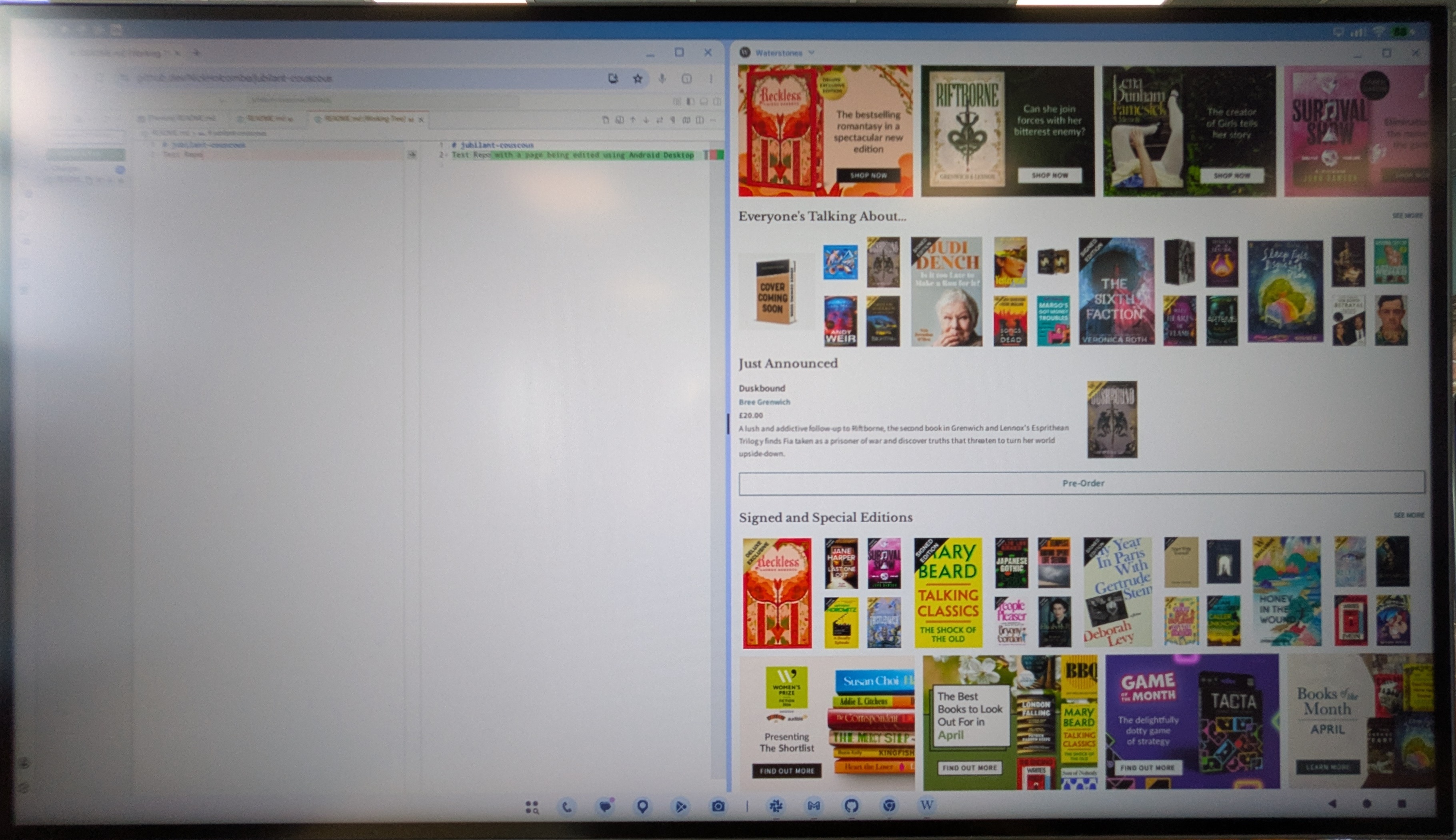
- small changes + commits using the in-browser VS Code editor (github.dev)
- I used this to make a tiny change (bumping the app release number by editing a couple of text files) and commit it.
- It was perfect for this kind of quick “edit a few files, commit, open a PR” job — without needing a full IDE.
- reviewing other colleague’s PRs
- small changes + commits using the in-browser VS Code editor (github.dev)
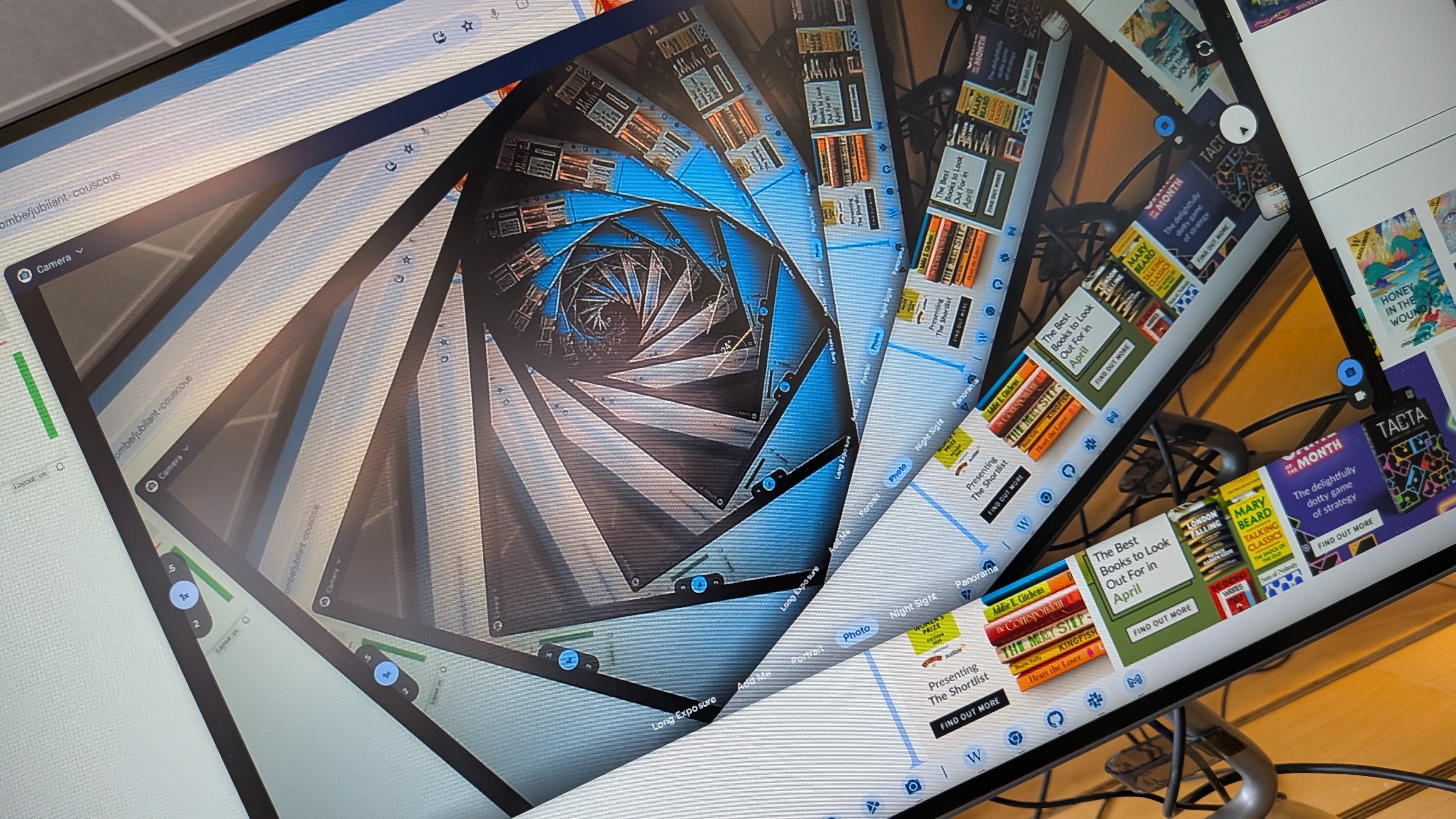
- Using our client’s apps like Waterstones in the screenshot below.
What didn’t work (or was painful)
A few quirks
Sometimes when switching between an app on the device itself and the same app on the desktop, things felt a little “beta” — nothing deal-breaking, but definitely a few rough edges that I’m sure will get ironed out.Also: my USB-C cable was a bit temperamental, and if I nudged it the wrong way I’d lose Desktop Mode and have to reconnect.
No local dev environment
The big limitation: I couldn’t spin up services/apps locally like I would on a laptop.That meant:
- no running the full stack locally
- no quick “edit → run → test” loop on-device
- no spinning up fresh local dev environments for checked-out repos
- no local phone emulators
- no running local AI tools
Things I’d do differently next time
If I had to do this again (albeit under different circumstances than my laptop dying!), I’d lean harder into the idea that the Pixel is a thin client — and make sure I had a “proper” development environment available in the cloud (and ideally some AI tooling too), rather than trying to recreate a full local dev setup on the phone.
For example, I’d be looking at things like:
- a cloud dev environment as the default (e.g. GitHub Codespaces / cloud IDE)
- an AI-assisted workflow that runs remotely so I’m not relying on local AI tools on the device (e.g. GitHub Copilot coding agent / cloud agent or OpenAI Codex cloud coding agent)
- a remote desktop fallback into a workstation if I need to use heavier tooling
That way, Desktop Mode becomes the portable screen/keyboard/mouse interface, and the “real work” happens somewhere with predictable CPU/RAM/network.
Overall verdict
I was genuinely impressed with how much I could achieve with just a Pixel phone and a basic desktop setup. For comms, project work, and lightweight GitHub changes, it’s a very capable emergency backup — and arguably worth testing before you’re forced into it.
Appendix: Getting my MacBook back up and running
This isn’t really the point of the post, but for completeness: here are the things I tried (and some helpful people who helped) to get my MacBook back to life. Shout out to Dave at Brightec for helping me get the laptop into Recovery Mode and Safe Mode and for my friend Ian Barnard who persevered as we connected my dead laptop up to his Mac.
- booting into Recovery Mode (power on and keep holding the power button down) and reinstalling macOS
- visiting a friend (thank you Ian Barnard) and attempting to revive the laptop in DFU mode (a process that involves a whole sequence of keyboard incantations and strict timing)
- booting into Safe Mode (once in Recovery Mode, shift-click continuing from the boot disk) and doing a clean reboot
Postscript: Since this experiment, Google has announced Googlebook, its new Android-powered laptop category. Whether Android Desktop Mode is part of that longer-term direction remains to be seen, but it does make this little experiment feel even more timely.
Looking for something else?
Search over 450 blog posts from our team
Want to hear more?
Subscribe to our monthly digest of blogs to stay in the loop and come with us on our journey to make things better!
